Forecast your AI spend before the bill arrives

Over the last few months, nearly every finance leader we’ve talked to has asked us some version of the same question. How do you budget for AI when it changes every month?
We get why. AI spend is usage-based, it’s spread across several providers, and it grows as people find new ways to use it. One team picks up an agent and their bill doubles. A model’s price changes and last quarter’s plan is out of date. Most finance teams have been answering with provider dashboards, a spreadsheet and a guess.
So we built Forecasting into Flowstate Helm. It shows where your AI spend is heading, month by month, and tells you before a month runs past its limit.
Budget on evidence, not a guess
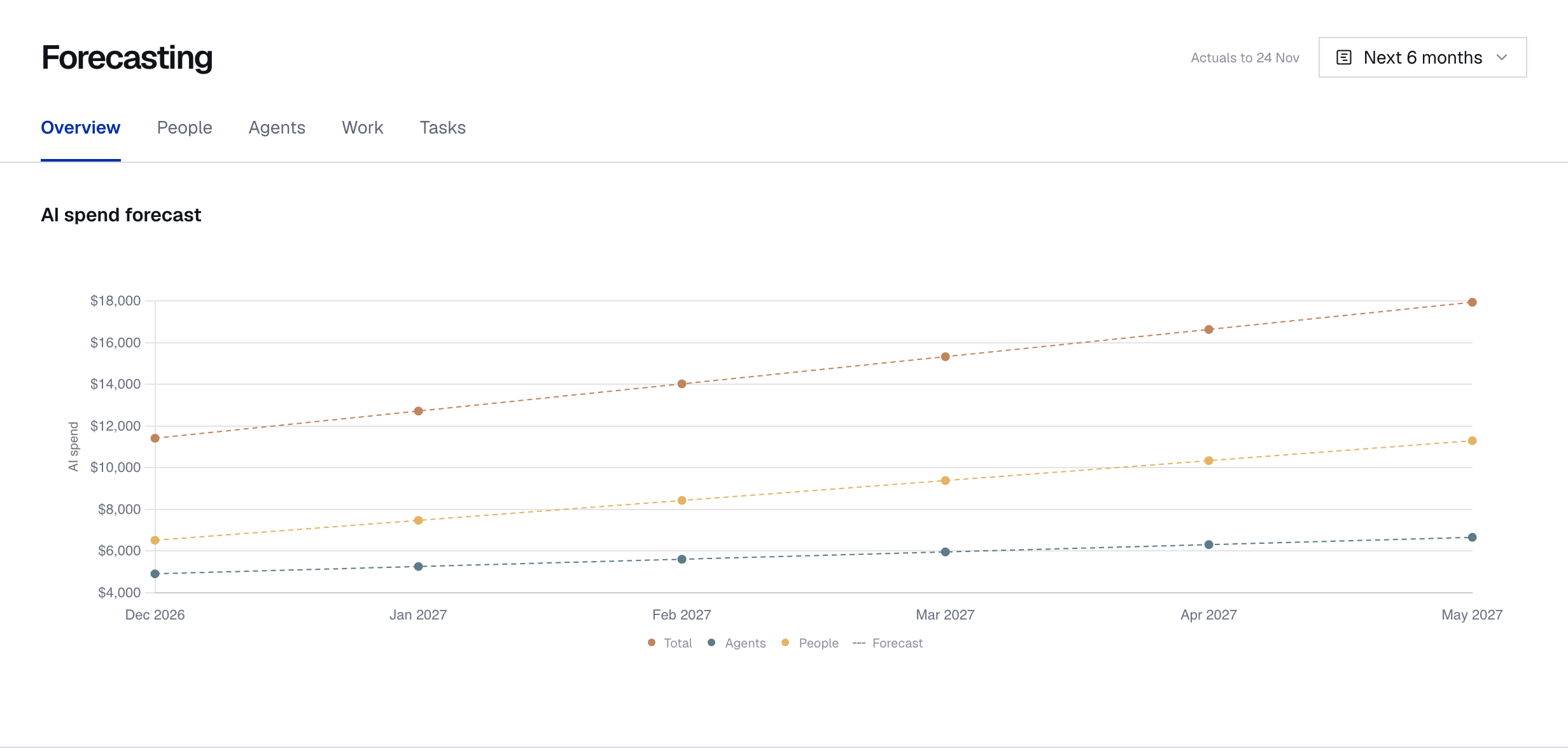
Set your AI budget from what your teams are actually doing. Forecasting puts the months that have closed beside the months ahead, so the number you take into planning starts from real spend and how fast it’s growing. Open Flowstate Helm → Forecasting and look at the next 3, 6 or 12 months, or back over any past range.
Overview charts the total with people and agents side by side, so you can see which one is driving the change.
No surprises at month end
The worst AI bill is the one nobody saw coming. A month on course to pass its limit is shaded and says by how much, so you can move budget or talk to the team while there’s still time, not when the invoice lands.
Know which conversation to have
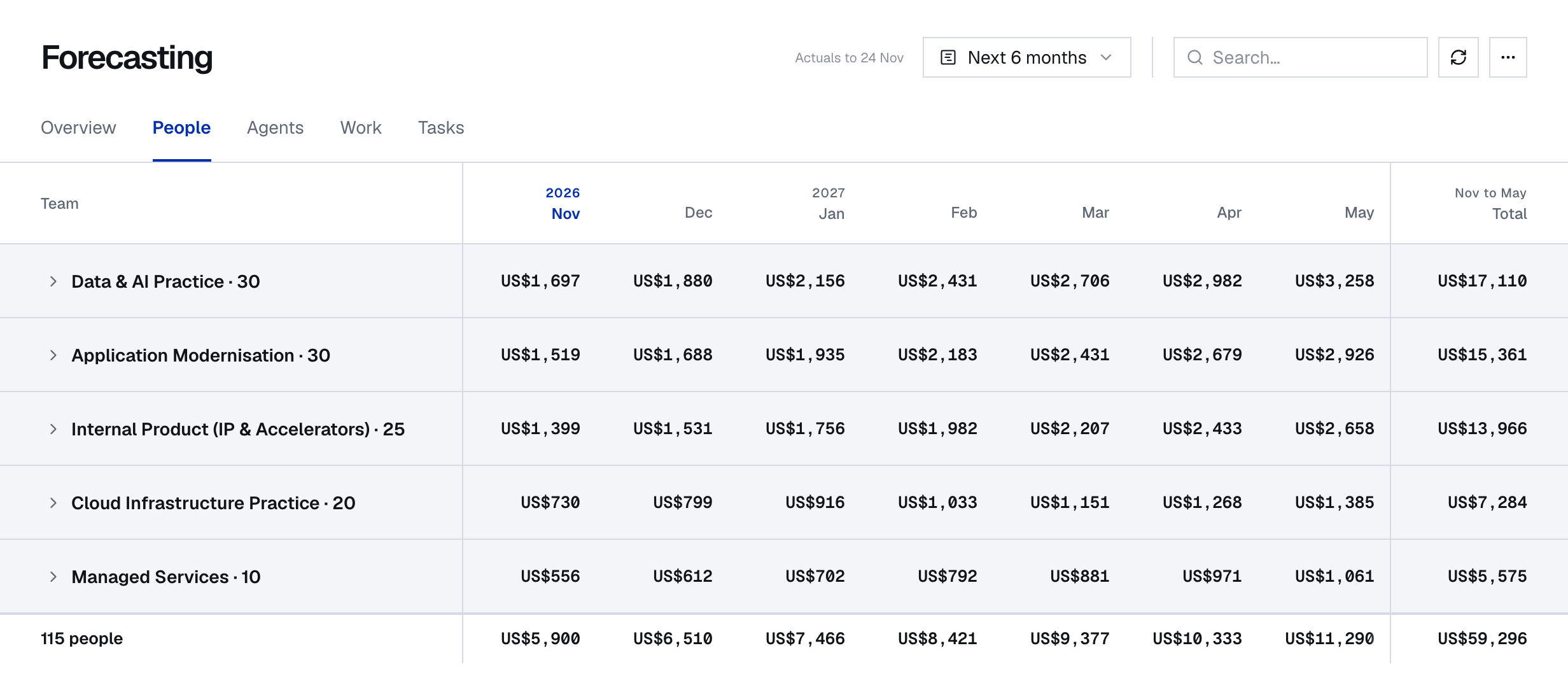
A forecast you can’t break down is one you can’t act on. People, Agents, Work and Tasks show which teams and people, which agents, which projects and which kinds of task will drive next month’s spend, so you know exactly who to talk to.
Weigh what each piece of Work costs
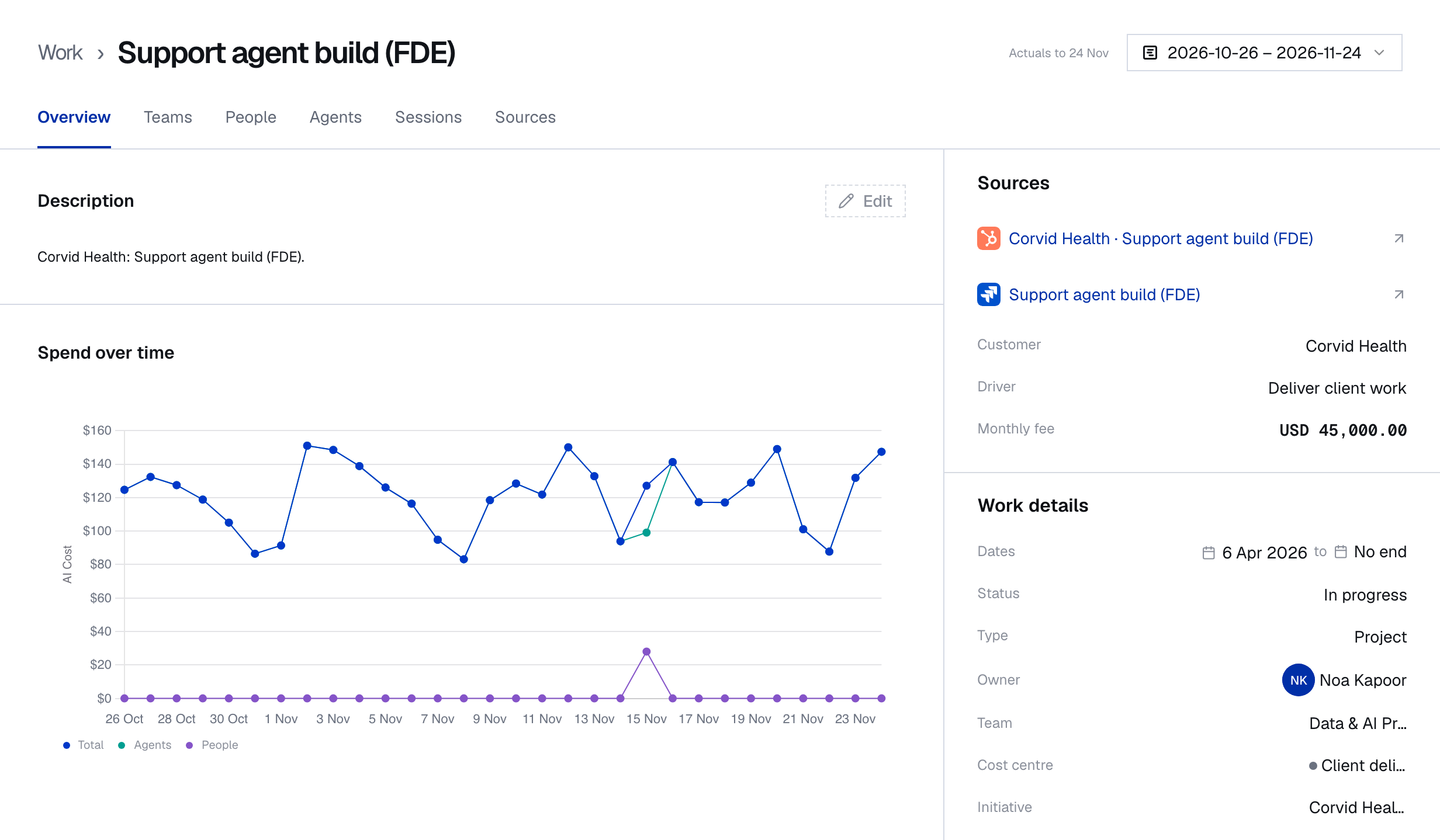
AI spend only makes sense next to what it pays for. Every piece of Work has its own page, where Spend over time charts its AI spend day by day and Teams, People, Agents, Sessions and Sources show where the money went. Opened from Forecasting on months ahead, its Teams, People and Agents tabs show the forecast too, so you can judge a project’s AI cost before you commit to more of it.
Help everyone spend their allowance well
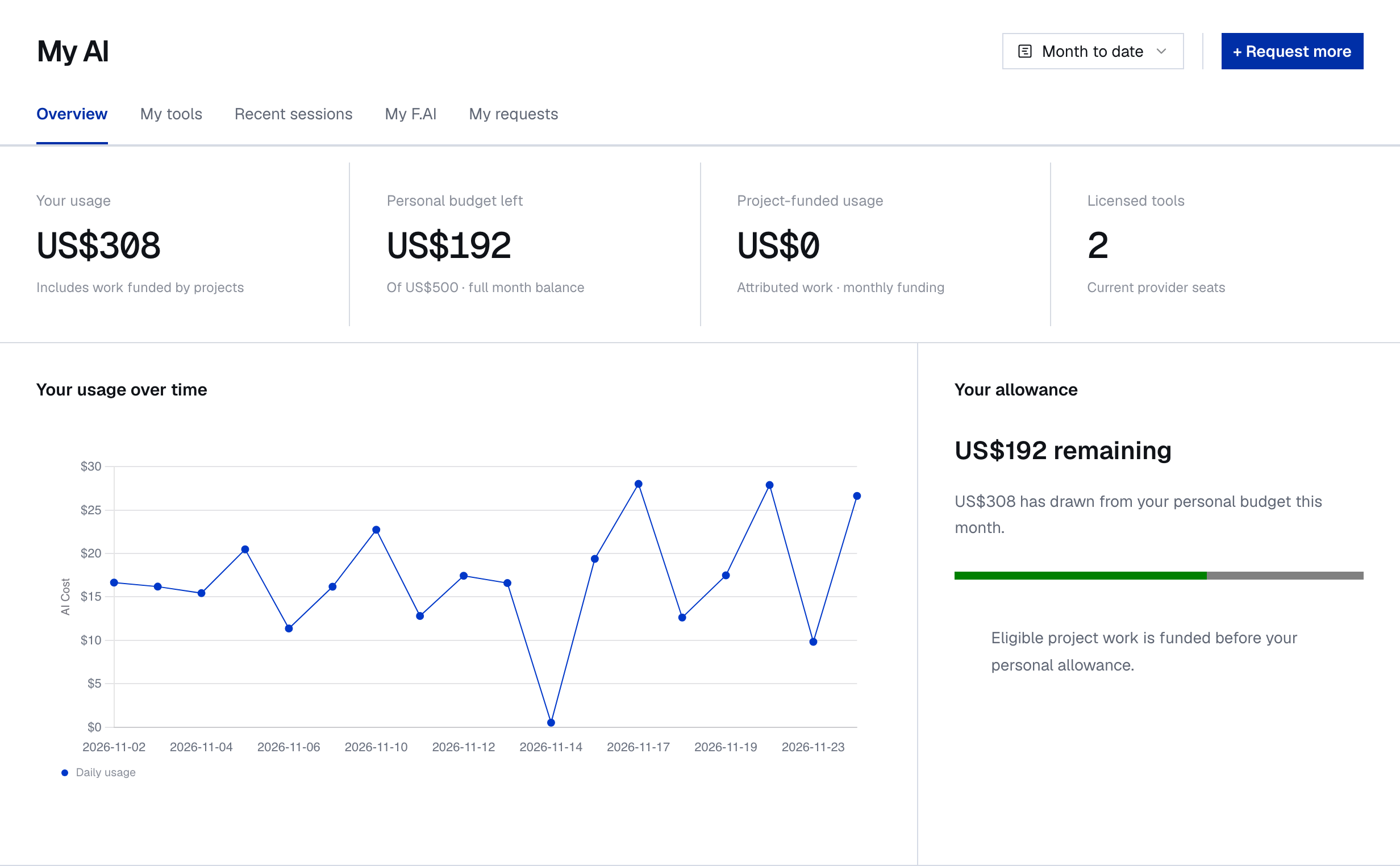
Budgets work best when the people spending them can see them. We built My AI so everyone can get the most from their AI allowance. Open Flowstate Helm → My AI to see your own usage, your Personal budget left, the tools you’re licensed for and Where your work is attributed. When you need more, Request more asks for a bigger allowance, a tool or a key, and you can follow it from the same page instead of chasing finance.
Forecasting started as a question from the people who use Flowstate. If there’s a question it can’t answer for you yet, tell us.
Improvements
- Faster forecasts and reports. Forecasts read straight from the database on every load, so the first view after you sort or filter is the fast one. On one of our largest customers’ data, forecast by cost centre went from 23.8 seconds to 2.4 to 2.6 seconds, and the capitalisation breakdown from 25 seconds to 3.3 to 4 seconds.
- Flowstate Helm’s menu reads the way people use it: Observe, Control and Save. Production is now called Agents.
- In Flowstate Helm, spend on an API key nobody owns counts as agent spend, and Anthropic spend shows who spent it.
- Work log is ready for everyone. In Settings → Work log, choose who submits each week: Flowstate’s estimate, each team’s manager, or each person. Invite people from Settings → Users, and they drag the line between two pieces of Work to change their week’s split.
- Types & links is a simpler way to bring in your own records. Add a type from Attio, HubSpot, Jira Cloud, Linear, a file or a CSV, link it to the rest, and choose what happens when one arrives in Settings → Workflows.
- Finance → Cost looks back at what you spent against the forecast or budget, by team, person, agent, Work and cost centre.
- Capitalisation is one page: cost by cost centre, capitalised work, net book value and amortisation, then who to chase. Every CapEx figure comes from submitted effort.
- Budgets are one list, and a draft becomes the budget when it’s approved.
- Since AI shows the time back and value returned on every task AI did, using your own task list from Settings → Task attribution.
- A Work item holds a budget, a deal’s commercial terms and several owners, and warns when cost runs past them.
- One weekly summary replaces daily task emails. Approvals still arrive straight away, on Slack and by email.
- Every list has the same control bar, and Command+K searches, filter values included.
- Type a date instead of picking one: “Q3”, “next friday” or “first weekday of june”.
- Lists scroll instead of paging. Totals and exports still cover every row.
- People, Teams, Work and Agents open straight onto their table.
- One passkey signs you in to every company you belong to, and sign-in remembers you.
- A new app switcher sits top left. Hold Option (Alt on Windows) to see a shortcut for every page.
- Dark mode is one consistent theme, and dialogs no longer open white.
- Maintenance and incident notices show on the sign-in page.
Fixes
- Expanding a forecast row no longer fails on a large organisation.
- A budget’s Team forecast opens in about a second instead of timing out.
- A page left open after your session ends sends you to sign in, instead of showing an error.
- A new employee now shows in Settings → Users, so you can invite them.